Please review the following support areas for answers to common email issues. If your issue is not resolved by this information, you can click below to submit a Trouble Ticket to our Support Team.
Experiencing trouble with your email? Start by checking the current Email System Status at http://status.emailsrvr.com/.
General Email FAQ
ePageCity email accounts are meant for person-to-person communications, and not for mass, bulk, or campaign-type email sending.
Our provider puts an automatic limit on to stop anything that seems like abuse and in their eyes if you’re using their email to send bulk email (even if it’s to 10 people) then they’ll throttle it, to protect against potential SPAM senders. Allowing any mass emails may cause their sending IP addresses to be reported to the SPAM abuse services, which then will cause other users on their server to be more likely get their email stuck in SPAM as the IP address is blacklisted.
To send mass or bulk emails, you should utilize a dedicated emailing program meant for that purpose, such as www.CampaignMonitor.com or www.MailChimp.com.
Email Client FAQ
- Are you connected to the internet? Check by opening your browser and going to a known web site – if you can see this page, you’re connected to the internet!
- Have you made changes to your firewall settings or your anti-virus program?
- Has your network consultant been working on the network?
- Is your password correct?
- It is only you or everyone in your office – try to narrow the problem down.
- Have you rebooted your computer?
- Have you changed any settings – re-run the Email Configuration Wizard
If you are the only one experiencing a problem with your email client, it is usually setup or password related.
If your entire office is having issues, check the Email Status Page.
First, check that you have the correct password. Test to see if you can log into your account through http://mail.epagecitymail.com. Enter the full email address and password, and see if you can log in.
If you can log in, you have the correct password. Try going into your Outlook settings (Generally through “Tools > Accounts > Email Accounts”) and re-enter the password, restart Outlook, and try to send again.
If you cannot log in, you have the password incorrect. Please have your Email Admin fill out the Email Account Changes/Upgrades Form to request a password reset.
If you have checked all of these options and still have the same error, please ask your Email Admin to submit a Trouble Ticket for further assistance.
Webmail FAQ
Is your password correct? Double-check that you have no typos.
Check the Email Status Page to see if there are any current known Email Access issues.
If there are no issues posted and you are still having trouble, please ask your Email Admin to submit a Trouble Ticket for further assistance.
- Log in to your Email mailbox at http://mail.epagecitymail.com
- Click the Contacts tab.
- Click My Contacts on the left menu.
- Click Import/Export Contacts.
- Under Export Contacts, select the mail client you wish to export to.
- Click Export and download the . csv file of your contacts through your web browser.
If you do not have an alternate mail client and just wish to download a list of contacts, select “Webmail” from the “Export to…” list and you will receive a .CSV file that can be opened and read through Microsoft Excel.
If you received a ‘Mailquota Warning’, ‘Mailbox Capacity Exceeded’, or other similar email for your account, it means that your online inbox is either full, or approaching capacity.
If you are checking email online solely through Webmail, and reach your Storage Capacity, you will need to delete messages in order to free up space for more emails to be received. Removing messages with large attachments are often the best way to resolve this issue.
If you ignore these Warnings and allow your inbox to exceed the limit, incoming messages will be bounced back to the sender.
Log in to Webmail. At the top left you’ll notice a graphical slider-bar that will indicate how much space you are using on the server.
To the right of the slider-bar, you’ll see a number that will indicate how much total space you are allocated (e.g. 25GB)
If you are close to your limit, be sure to delete some messages to bring your total down.
When your mailbox reaches 70% of the allocated space, you will receive an email alert. You can then delete saved files or messages to free up space, or speak with your internal IT team if you need to archive old messages offline locally.
NOTE: if you have used all the space allocated to your mailbox, emails sent to your address will be REJECTED and “bounce back” to the sender.
Any item in Webmail will take up space. This includes all folders (including the spam folder), contacts, tasks, etc.
Remember that each individual email has a different size, based on the size of the message and any attached files. One email may be 10kb (tiny) or over 10MB.
When looking at messages to determine how much space is used, refer to the size of the messages, not the number of emails in your account.
Be sure to empty your trash folder after deleting items.
When the mailbox has become completely full, there is zero space to create new messages. When a message is moved from one folder to another, the message is copied, then removed from the existing folder. When there is no more storage space, it can’t make that copy!
To get around this and delete some messages, you can temporarily disable the option the puts a copy of deleted items in the Trash folder. When this setting is off, any emails deleted will be immediately, permanently deleted. This is in the Webmail settings for the individual mailbox.
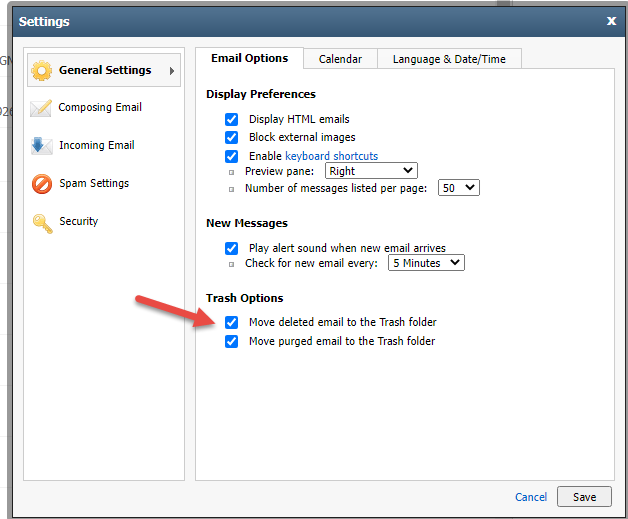
Once you have deleted enough email to free up some space (allow 10-15 minutes for the system to catch up to the changes) you should be able to turn this setting back on and resume deleting emails and emptying the trash normally.
- Log in to Webmail.
- Click on the button in the upper right corner and select ‘Settings’
- Choose “Vacation & Email Forwarding”.
When your vacation message is activated, each person who sends you an email will automatically receive your vacation message. Note that each person will receive your vacation message only one time.
Remember to turn off the Vacation Message when you return to the office!
- Log in to Webmail.
- Click on the button in the upper right corner and select ‘Settings’
- On the main Account Options screen, you can reset your password.
If you have forgotten your password, please have your company’s Email Admin submit the Account Update Form to reset your password.
SPAM FAQ
Spam filtering tools work to detect and filter out spam. The changes you make to your spam filtering preferences will be in effect regardless of your email software; even if you use Outlook, Netscape Mail, Eudora, etc., your spam will be filtered, according to your preferences, before the email reaches your inbox.
1. Log in to Webmail.
2. Click the Settings link, located in the upper right corner.
3. Click the Spam Filtering Preferences link.
4. In the Spam Filtering Levels section, indicate your desired level of spam filtering.
5. Click the Save button.
The default setting for your spam is to add [SPAM] to the email subject of any email designated as spam. Alternately, you can have the spam delivered to a folder that’s accessible via Webmail and will not be downloaded to your email client. To make this change, follow these instructions:
1. Log in to Webmail.
2. Click the Settings link, located in the upper right corner.
3. Click the Spam Filtering Preferences link.
4. In the Spam Handling section, indicate how the spam filter should handle incoming spam:
* Deliver to Spam folder – Spam messages will be delivered to your Spam folder.
* Delete the email immediately – Spam messages will be deleted automatically.
* Deliver to this alternate email address – Spam messages will be forwarded to the email address you indicate.
* Add this text to the beginning of the Subject line – Spam messages will be delivered to your Inbox, but will include text (e.g., “[SPAM]”) in the Subject line.
* Ignore – Spam messages will be delivered to your Inbox.
5. Click the Save button.
NOTE: if you choose to have spam sent to a spam folder, you will need to check and purge that using Webmail. It will not download to your email client (e.g. Outlook).
If your spam messages are being delivered to your Spam folder, you may want to limit the amount of spam that is stored in the folder. To manage the size of this folder, follow these instructions:
1. Log in to Webmail.
2. Click the Settings link, located in the upper right corner.
3. Click the Spam Filtering Preferences link.
4. In the Spam Folder Cleanup section, indicate your selection.
5. Click the Save button.
It is important to check your spam folder periodically to ensure that the spam filter is correctly identifying spam. You should also purge your Spam folder regularly. If you are using a email client (e.g. Outlook), you will need to log in to Webmail to view your spam folder.
When you add a sender, domain, or IP to your blacklist, you ensure that email from those senders is always handled as spam.
To manage your blacklists:
1. Log in to Webmail.
2. Click the Settings link, located in the upper right corner.
3. Click the Spam Filtering Blacklists link.
4. In the Domain and Email Blacklist box, you can add or remove blacklisted email addresses or domains.
5. In the IP Blacklist box, you can add or remove blacklisted IP addresses.
6. When you are done, click the Save button.
When you add a sender, domain, or IP to your safelist, you ensure that email from those senders is never handled as spam. This ensures that you will always receive email from those senders.
If you receive real mail from a sender that has the [SPAM] tag on it, or they are receiving rejection messages when emailing you, you may wish to add them to the Safelist.
- Log In: Go to https://mail.epagecitymail.com/ and sign in to your mailbox.
- Open Settings: Click your email address (or the menu icon) in the top-right corner and select Settings.
- Find Spam Settings: In the pop-up, click Spam Settings on the left.
- Go to Safelist: Click the Safelist tab.
- Add Entry: Click the Add button, enter the full email address (e.g.,
sender@example.com) or domain (e.g.,example.com), and click Add. - Save: Confirm the entry appears in the list and click Save
For your entire Domain (all email recipients): Please submit the Trouble Ticket below requesting assistance.
Our email platform shows reports of 98% of all Spam being blocked, with virtually zero false-positives (Real email being marked as Spam).
However, nothing is 100% effective in blocking all Spam which is why we recommend using another blocker on your computer if you feel you need additional email filtering. Email Client programs such as Outlook also offer built-in Spam blocking (Junk Mail) filters. Note that we cannot offer technical support for these programs.
If you are receiving returned email Failure Notices from messages you did not send, or messages that look like they came from yourself or someone with a email address from your company, it’s due to a SPAMmer trick called “spoofing.” Email spoofing is the forging of email so it appears to originate from someone/somewhere other than the source. Basically, a SPAM programmer gets your domain name, and sends out messages that look like they came from your address.
An analogy from postal mail would be to use a fake return address on the envelope. SPAMmers do this as a way to hide the real sender and trick the recipient into reading and responding to mail they would otherwise ignore.
Usually, it’s nothing to worry about. It’s more of a nuisance than anything else. These emails are scanned / stripped of any viruses they may carry before they reach your inbox.
Admin Console FAQ
The Email Admin Console allows the Email Admin for your domain to log in and make changes directly to your account.
Click the links below to learn how to use different options in the admin console.
You will always start by logging into your Admin Console through http://admin.epagecitymail.com.
If you do not have your Admin Console set up, please have your Email Admin submit the Account Changes Form, and check the box at the bottom to be granted Admin Access, or submit that same Form to request for ePageCity to make the changes for you.
- Add or Delete Mailboxes
- Change Mailbox Passwords
- Adjust Email Forwarding
- Add or Edit Email Auto-response / Out of Office Messages
- Add or Delete an Alias
If you have forgotten your username or password to the email admin console, or are unable to log into your account, please contact ePageCity by submitting a Support Ticket and our Support team will assist you with resetting your access.
I need further support!
Do you need an account change, such as forgotten email passwords, or adding, deleting, or changing mailboxes? Please use the Admin Console to make these changes.
Please check the Email Status Page before submitting a ticket.
To better manage email support, all email support is handled through this website. If you need emergency assistance with your email, you can call us at 312.291.2200, but please note that a $50 Phone Support Fee will be assessed.
Without exception, only an authorized contact for your account may complete this form. Forms completed with missing or incomplete authorized contact information will not be responded to. If you are unsure who your authorized contact is, you can call us.